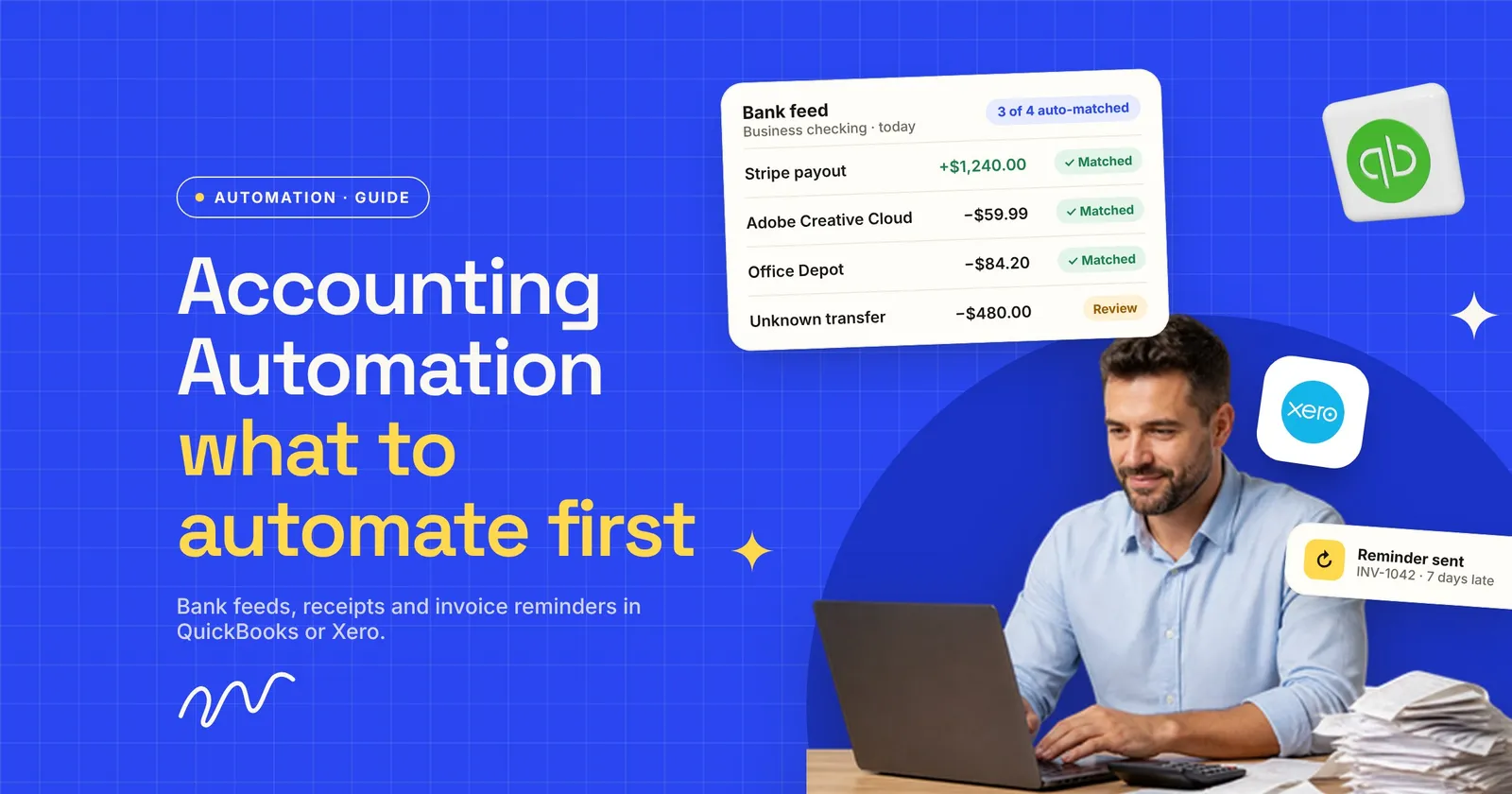
With accounting automation, the order you set things up in matters more than the tools. Many small businesses already pay for software that can sort bank transactions, read receipts and chase late invoices. Those features sit unused because nobody set them up in a sensible order. The other common mistake is automating something that should stay a human decision, like paying a supplier whose bank details “just changed.”
This guide is for owners and ops leads using QuickBooks Online or Xero. It covers what to automate first, what each tool already does (with links to their own help pages), what to keep manual, and where the built-in features stop.
I’ve connected accounting and invoice systems to other software, and I built the free invoice tools on Wingflows. This guide is the order I’d automate things in for a small business.
Key takeaways
- Before you automate bookkeeping tasks, check what your plan already includes. Start with the bank feed. Bank rules and receipt capture remove the most typing for the least setup.
- QuickBooks Online and Xero both handle recurring invoices, payment reminders and receipt capture natively. Check what you already pay for before buying another app. If you only send a few invoices a month, a free invoice generator may be all you need for now.
- Keep three things manual: changes to a supplier’s bank details, approval of large payments, and a monthly review of what the rules posted.
- When data has to move between several systems (a booking tool, a webshop, a CRM), that is where an integration or custom build starts to pay off.
What is accounting automation?
Accounting automation means letting software do the repeat parts of bookkeeping: importing bank transactions, categorizing them with rules, reading receipts and bills, sending invoices and reminders, and matching payments. This is sometimes called accounting process automation. People still review the exceptions, approve payments and make the tax calls. For a small business, most of it starts inside QuickBooks or Xero.
How to automate accounting: the order that works
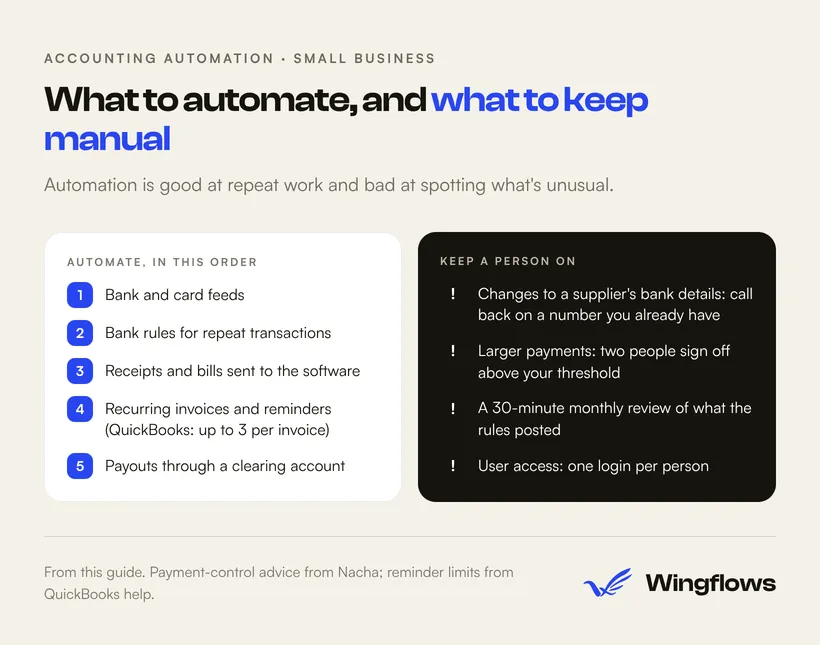
Each step feeds the next. Rules only work once transactions flow in automatically. Reconciliation only gets faster once receipts are already attached. So work through it top to bottom:
Connect every bank and card account. No feed, no automation. Every later step depends on transactions arriving by themselves.
Write bank rules for your repeat transactions. Rent, software subscriptions, fuel, payroll transfers. Start with the boring, identical ones.
Send receipts and bills to the software, not to a folder. Use the forwarding email address or mobile capture so documents arrive already linked to a transaction.
Turn on recurring invoices, payment reminders and pay links. This is where automation shows up in your cash flow, not only in saved time.
Route card-processor and marketplace payouts through a clearing account. Payouts are net of fees and refunds, so they never match a single sale.
Decide who approves bills before anything is paid automatically. Do this last, once the earlier steps are stable, and keep the manual checks in the section below.
The first two steps are where most owners get the quickest win, because they replace the most typing.
Steps 1 and 2: bank feeds and bank rules
In QuickBooks Online, a bank rule matches on the description, the raw bank text or the amount. It then sets the category, payee and other fields. You can use up to five conditions per rule. You can also turn on auto-post, which adds matching transactions to your books without a click (QuickBooks help). One detail catches people out: auto-post rules run when you sign in, upload a file, or create or change an auto-post rule. They don’t run in the background while you’re away.
QuickBooks itself suggests starting auto-post with simple, consistent transactions such as rent or fuel. That’s sound advice. A rule that guesses wrong on a one-off purchase quietly puts it in the wrong category.
In Xero, bank rules cover spend money, receive money and transfer transactions. During reconciliation you still accept the suggested matches, one at a time or in bulk with cash coding. As one accounting publication describes it, “all you have to do is click ‘OK’” (Insightful Accountant). Xero also offers automatic bank reconciliation powered by its AI assistant, JAX. It reconciles routine lines only “when confidence is high” and leaves every result visible for review (Xero). Plan availability isn’t clear from Xero’s page (on some plans it’s a paid add-on), so check your plan before counting on it.
Step 3: receipts and bills
In QuickBooks Online you create a custom forwarding email address for your company, and each user registers the email they’ll send from. Email a receipt or bill there (PDF, JPEG, GIF or PNG, one receipt per image) and QuickBooks reads the date, amount, vendor and last four card digits. It then creates a transaction for you to review (QuickBooks help). With Gmail you can add that address as a forwarding address, verify it, and set a filter that forwards supplier invoices automatically.
Xero’s equivalent is Hubdoc. It captures bills and receipts from your phone, email or scanner, extracts the key details and publishes them to Xero with the original document attached. Xero says Hubdoc is included in its Early, Growing and Established plans in the US (Xero App Store).
Step 4: invoicing that chases itself
QuickBooks Online can send up to three automatic reminders per invoice, scheduled up to 90 days before or after the due date. Reminders only go to unpaid invoices you’ve already emailed to the customer (QuickBooks help). For repeat billing, QuickBooks has three template types (QuickBooks help):
- Scheduled sends the invoice automatically.
- Reminder prompts you to send it yourself, which is useful when the amount changes.
- Unscheduled is a saved template you use when you need it.
Xero sends automated reminders before and after the due date on a schedule you choose, and stops once payment arrives. It also supports repeating invoices and a “Pay now” button so customers can pay by card or direct debit from the invoice (Xero).
Step 5: payouts from Stripe, Square, Shopify and similar
This step is easy to get wrong. As FitSmallBusiness puts it, “payment processors rarely deposit the exact amount of one individual sale” (FitSmallBusiness). One payout can combine many sales minus fees and refunds. The fix is a clearing account: record the gross sales and fees there, then match the net deposit against it. Without one, your bank rules end up guessing, and your revenue figure ends up net of fees.
To get the numbers in, first check your accounting software’s app marketplace for a connector from your processor. If there isn’t one, post one summary entry per payout from the processor’s payout report: gross sales, minus fees and refunds, equals the amount that hit your bank. Ask your bookkeeper to set up the accounts once.
What QuickBooks and Xero already automate
Before you buy another app, check this list. It’s our side-by-side summary of the two vendors’ own help and product pages, read in October 2026. Features change, so confirm on your plan.
If you use most of these features, you’ve done most of what the software can do on its own. The next gains come from connecting it to the other systems you run.
What to keep manual (on purpose)
Automation is good at repeat work. It’s bad at spotting when something unusual is happening. Keep a person on these:
- Changes to a supplier’s bank details. Nacha, the organization that governs the US ACH network, recommends confirming any change to payment instructions “outside of the communication method” that requested it. That means calling the supplier back on a number you already have, not one from the email (Nacha). The FBI gives the same advice: verify changes “via the contact on file” (FBI). No bank rule or OCR tool should be able to update a supplier’s account number by itself.
- Approval of larger payments. Nacha also recommends dual controls for transactions above a set threshold. Pick a number that fits your business and make two people sign off above it.
- A monthly review of what the rules posted. Let routine transactions flow through the rules and put your attention on the exceptions. Spend 30 minutes a month scanning auto-posted lines for anything in the wrong category.
- User access. Give each person their own login with only the access they need. Shared admin logins make it impossible to see who changed a rule.
One more rule before you automate anything: write down who creates, checks, approves, pays and reconciles each type of transaction. If you can’t, the process isn’t ready. Automating it will only repeat the confusion faster.
Where built-in features stop
QuickBooks and Xero automate what happens inside them. A lot of manual accounting work happens between systems. Typical signs you’ve reached that point:
- Someone exports sales from a booking system, webshop or POS every week and re-types totals into the accounting software.
- Invoices are created by hand from data that already sits in a CRM or a job sheet.
- Month-end reports need numbers from three places, so they get built in a spreadsheet every time.
- Approvals happen over email or chat, with no record next to the bill.
You’ll also see dedicated tools sold for single jobs: bill pay and accounts payable software, expense cards with spend controls, standalone receipt capture, and month-end close software. Each is worth adding only when that one job has outgrown what QuickBooks or Xero does natively. They still need connecting to your books.
The options for connecting systems, roughly from simplest to most flexible:
- An app from the accounting software’s marketplace that connects your other tool directly. Check here first.
- A no-code automation tool (Zapier, Make, n8n) that moves data between systems on a trigger. Good for simple, well-defined flows.
- A custom integration or small internal system when the logic is specific to your business, volumes are high, or you need an audit trail the other options can’t give you.
If you’re in the third group, that’s the work we do in business systems and automation and custom software.
A 30-day plan you can start this week

- Week 1: Connect every bank and card account. List your 10 most frequent transactions from last month.
- Week 2: Write a bank rule for each of those 10. Turn on auto-post (QuickBooks) only for the fixed-amount ones, like rent.
- Week 3: Set up receipt forwarding (QuickBooks) or Hubdoc (Xero). Turn on invoice reminders and, in Xero, online payments.
- Week 4: Set up a clearing account for each payment processor. Write down your payment-approval threshold and your call-back rule for supplier bank changes. Book a recurring 30-minute monthly review.
Ask your accountant or bookkeeper to check your rules and clearing accounts before you rely on them for tax filing.
How long to keep the records you automate
Digital receipts still need to be kept. For US businesses, the IRS says to keep records for 3 years in most cases. Some situations need longer: 6 years if you leave out income that is more than 25% of the gross income shown on your return, and 7 years for a claim for a loss from worthless securities or a bad debt deduction. Employment tax records need to be kept for at least 4 years after the tax is due or paid, whichever is later (IRS). Before you delete old scans or close an old app, confirm that the documents were exported or are still attached to the transactions in your accounting software. Outside the US, check your own tax authority’s rules.
Frequently asked questions
Can accounting be fully automated?
No. Data entry, categorizing, receipt capture and payment reminders can be largely automated. Approvals, unusual transactions, changes to supplier bank details and tax decisions still need a person. Even Xero’s automatic reconciliation leaves lines it isn’t confident about for manual review.
Which bookkeeping tasks should you automate first?
Bank feeds and bank rules, then receipt and bill capture. They remove the most manual entry and make every later step, like reconciliation and reporting, faster. Invoice reminders come next because they affect cash flow directly.
Does accounting automation replace a bookkeeper?
It changes the job more than it removes it. Automation handles repeat entries. A bookkeeper or accountant still reviews exceptions, keeps clearing accounts right and prepares for tax. Have them check your rules before you rely on them.
Is QuickBooks or Xero better for automation?
Both cover the core: bank rules, receipt capture, recurring invoices and reminders. The differences are in the details, like QuickBooks’ auto-post for rules, Hubdoc being included in Xero’s plans, and Xero’s JAX auto-reconciliation (included or a paid add-on, depending on your plan). Pick based on what your accountant supports and which apps connect to your other systems.
How long should I keep digital receipts?
For US businesses, the IRS baseline is 3 years, with longer periods in specific cases, such as at least 4 years for employment tax records. Keep the original document attached to the transaction so it’s easy to find.
Summary
To get accounting automation right, start with bank feeds and rules, add receipt capture and invoice reminders, handle processor payouts through a clearing account, and keep a person on supplier bank changes and large payments. Most of that is already in QuickBooks or Xero. The harder part is connecting your accounting software to the other systems you run.
If re-typing data between your booking system, webshop or CRM and your accounting software is eating hours every week, talk to us. We’ll tell you whether an off-the-shelf connector will do, or whether something custom is worth it. Agencies that need a build partner for this kind of work can reach us the same way.